WORK TOGETHER
Work together.
Share a project with your editor or creative partner. Keep the prompts, references, model settings and generated results in the same workspace, so your teammate can open it and continue the work.
Work together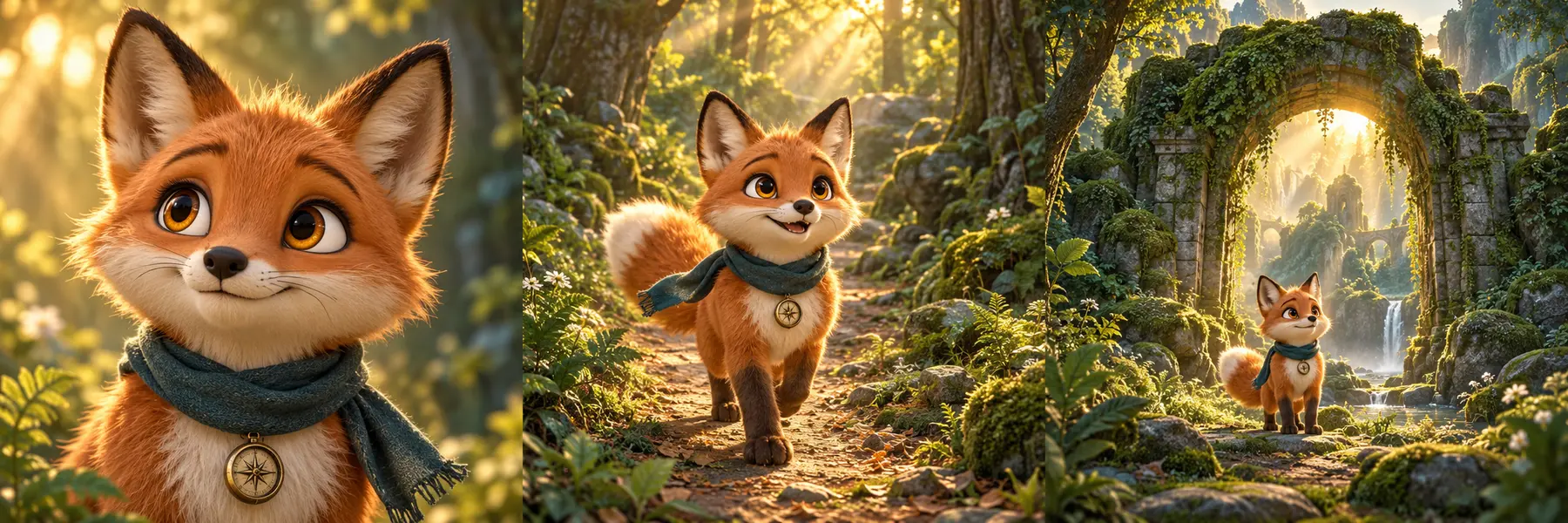
CONSISTENT CHARACTERS & WORLDS
Same characters. Same world. New scenes.
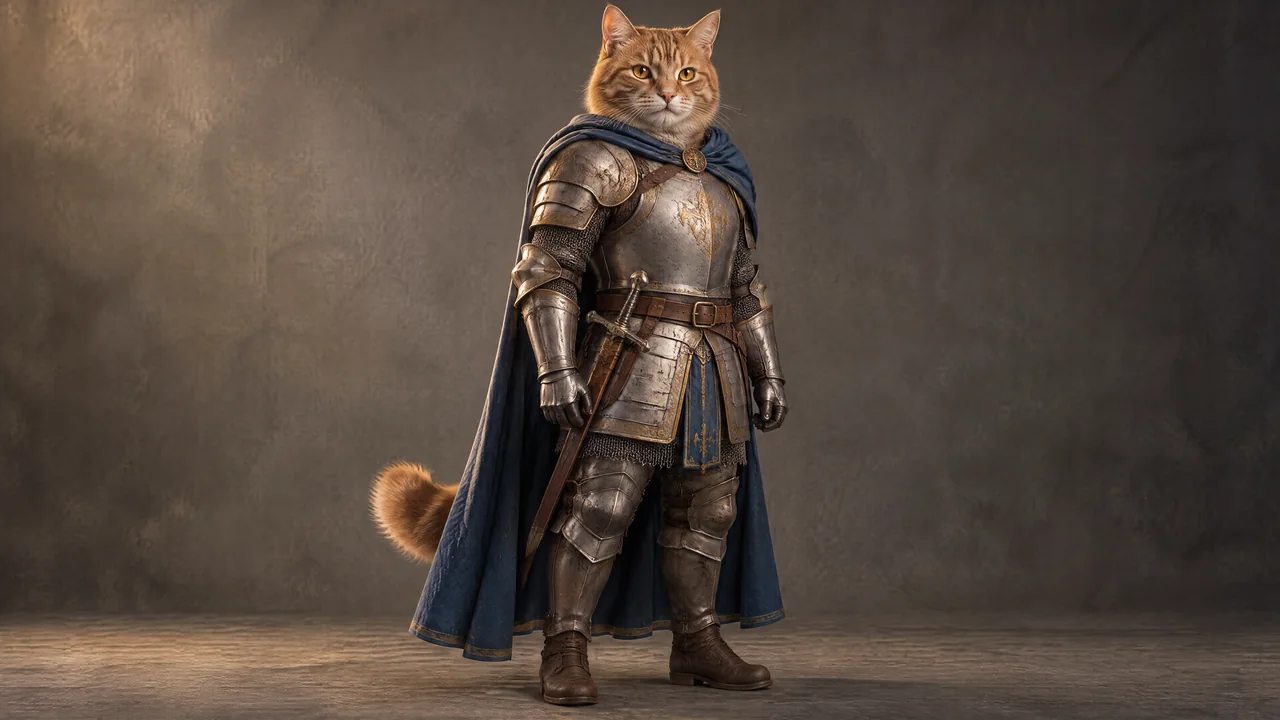
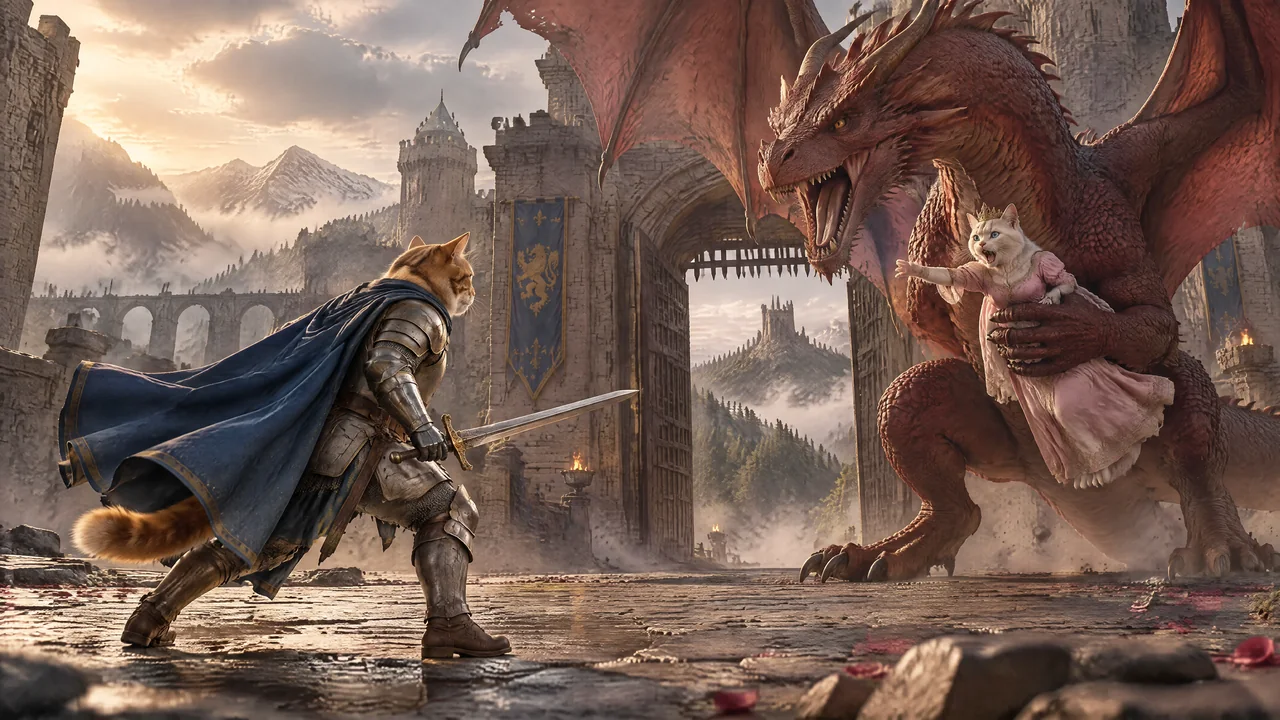
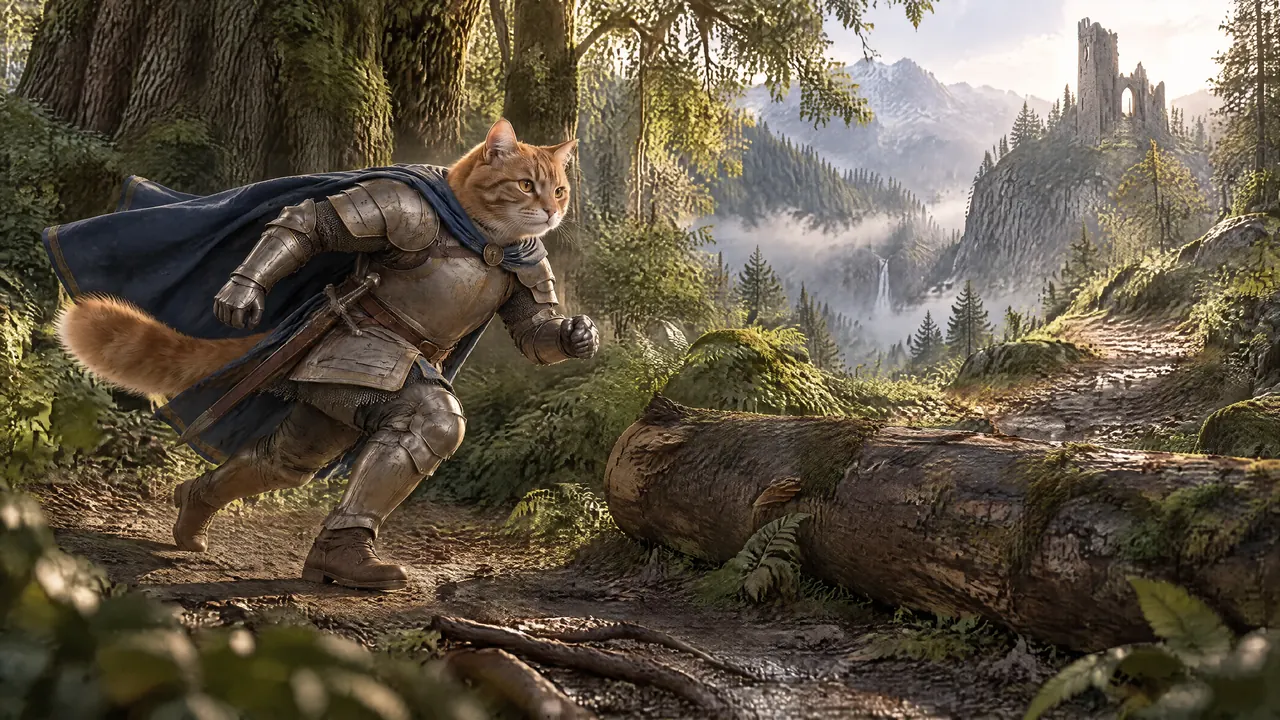
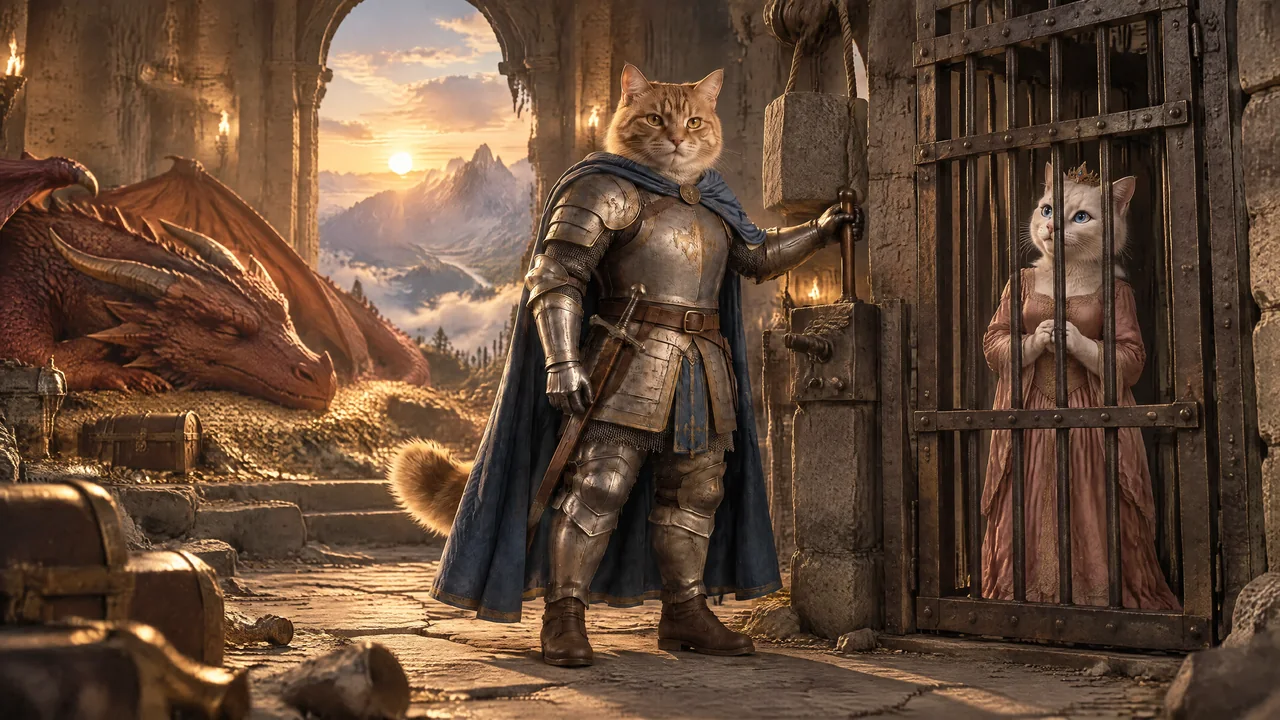
Keep familiar faces, locations, worlds and props connected across your story. Create or upload your visual references, approve the look, and attach them to the shots that need them.
In Studio, this is called References. Save useful references to your library and reuse them in future projects.
Explore ReferencesSame face, scarf and visual world.
BULK AI IMAGE GENERATION
A whole shot list of images. In one batch.
Queue your prepared image prompts together and keep every result attached to its shot. Review the outputs as they arrive, then regenerate the images that need another take.
Explore bulk generationBULK AI VIDEO GENERATION
Bulk video. Your choice of shots.
Choose which images become video and generate those clips as a batch. Keep the other shots as stills, mix models across the sequence, and set the duration and resolution for each clip.
PRICES IN US DOLLARS
Real prices. Clear costs.
See generation estimates in US dollars, including the total for a batch. Know what you are about to spend before you click Generate.
Studio access is free, with no monthly subscription. Our pricing page shows lower per-clip rates for selected model and plan comparisons with Higgsfield and Freepik.
Explore bulk pricing & speedReal dollar prices.
Before you generate.
AI MODEL CHOICE
Put your budget where it matters.
Give the hook a stronger model, then choose a more economical setup for simpler scenes. You can change the model and resolution from shot to shot.
Compare Flare, Sunburst and Seedance 2.5- 01The hookSeedance 2.51080p
- 02The main storyGrok Imagine 1.51080p
- 03Simpler scenesGrok Imagine 1.5720p
This is one possible setup. You choose the settings; use your own audience-retention data to decide where extra spend makes sense.
AUTOMATIC PRE-EDITING
Your first edit. Already prepared.
Choose a style and Studio prepares the sequence with matching movement and transitions. Get your shots into an edit you can take straight into Premiere Pro.
Sleep
Gentle zooms, slow pans and soft dissolves for a calmer viewing experience.
Explainer
Clean hard cuts and steady framing that give the explanation room to land.
Cinematic
Premiere transitions such as Cross Dissolve, Film Dissolve and Dip to Black where the footage allows, with original clip sound.
WATCH BEFORE YOU EXPORT
Press play before you export.
Watch the sequence inside Studio with narration, clip audio, movement and transitions. Scrub through the timeline, step through frames and jump to a shot or chapter to check the flow.
The preview is for reviewing the edit. Browser effects can differ from the final Premiere render.
THE DETAILS THAT SAVE TIME
A few more reasons to keep creating.
Bring prompts from your AI chat
Paste prepared prompt text or import .txt files. Review the import and update matching shots while keeping their existing media.
Keep the versions you like
Compare saved image and video outputs, then select an earlier version when it fits better.
Use your own media
Upload your images, video clips and narration, and combine them with generated shots.
Choose your format
Start with horizontal 16:9, vertical 9:16 or square 1:1. Available generation options depend on the model.
Catch issues before the handoff
Check for missing media, short clips, gaps and overlaps before you prepare the export.
Take an organized edit into Premiere
Export your media, narration and a ready-to-import Premiere timeline, with chapter markers and editor notes where provided.
GOOD TO KNOW
A few quick answers.
What does Creators Studio do?
Creators Studio organizes AI video production from prepared prompts to a Premiere-ready edit. It combines reusable References, bulk image and video generation, shared projects, per-shot model settings, dollar estimates and timeline preview.
Can I mix models and still images in one project?
Yes. Choose a model and settings for each video shot, and keep other shots as still images. Studio keeps the selected media in project order for preview and export.
Can I watch the edit without exporting it?
Yes. Choose an editing style and preview the sequence inside Studio with your accessible media and audio. The preview is for reviewing timing and flow; finish and render the prepared timeline in Premiere Pro.
Make room for the creative part.
Bring your next project into Studio and put the repetitive production work on a shorter path.
Start for free