COMPLETE AI VIDEO WORKFLOW

From one script toan organized video project.

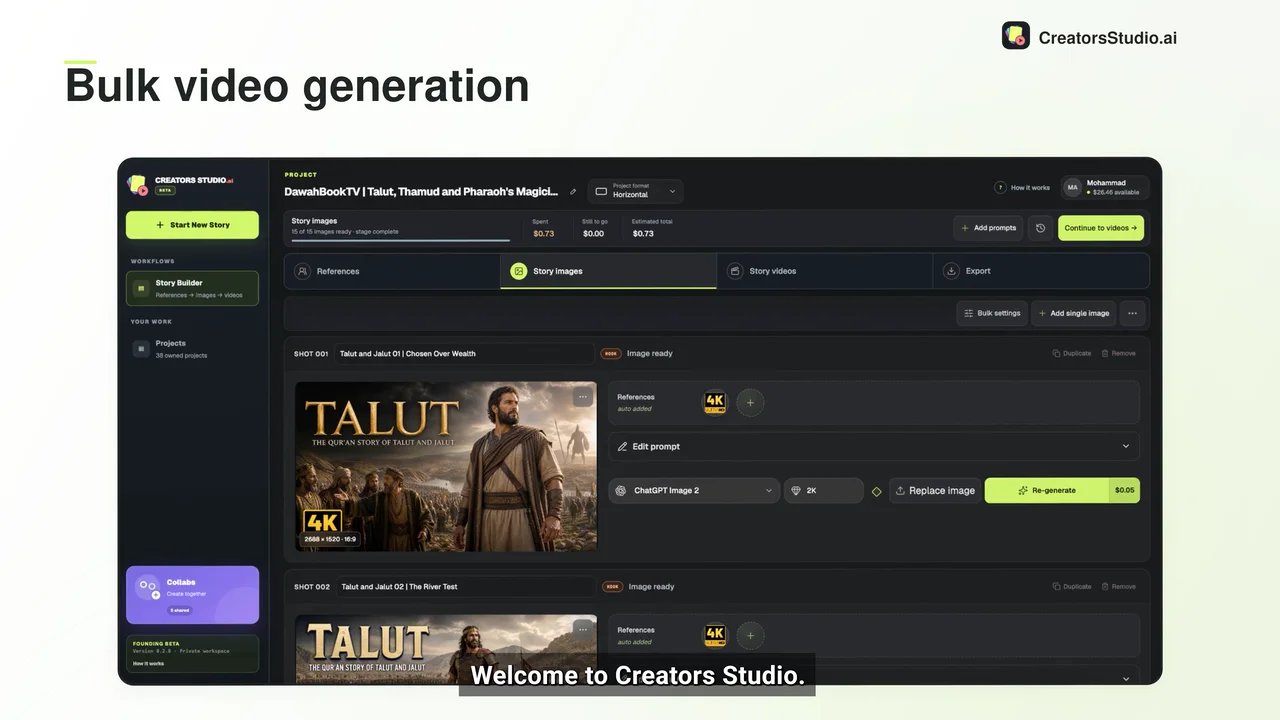
Creators Studio keeps your references, shot prompts, image generations, video clips and export together—so a long-form production does not become a maze of tabs and downloads.

Script → exportApprove before motionChoose per shot
PROJECT PIPELINE LIVE WORKFLOW
01Story and promptsREADY
02Character referencesAPPROVED
03Bulk images36 SHOTS
04Video generationPER SHOT
05Premiere exportPREPARED

BEFORE YOU START

Bring the creative plan. The Studio organizes production.

The current beta is built for creators who already know the story they want to produce. It turns that plan into a controlled generation workflow.

01

Your script

Start with the narration or story you intend to publish. A finished script makes shot planning and pacing much more reliable.

02

Your shot prompts

Bring prepared image and video prompts, or organize them before generation. Each shot remains visible and editable.

03

Generation access

Connect your own supported generation account. The Studio shows estimates and sends work to the model you select.

THE FIVE STAGES

A repeatable path for every long-form video.

01

Organize the project

Keep the story, narration context and shot list together instead of rebuilding the setup in several separate tools.

02

Approve references

Create or upload character and world references. Approve the versions that should guide later generations.

03

Generate images in bulk

Run the prepared image shots as a batch, monitor their status and regenerate only the frames that need another attempt.

04

Animate selected shots

Choose a video model and settings per shot. Use stronger models where motion matters and economical options where it does not.

05

Prepare the edit

Download the media or open a prepared Premiere Pro workflow with ordered shots, movements, transitions and text planning.

CREATOR CONTROL

Why the workflow stays shot-based.

A long YouTube video is not one generation. It is a sequence of decisions: which moments need a still image, which deserve motion, which character reference should be attached and which model fits the shot.

Creators Studio keeps those decisions visible. You can approve a reference once, inspect outputs as they arrive and avoid paying to regenerate an entire video because one scene failed.

  • Change the model, duration, resolution or audio setting per shot.
  • See an estimated USD cost before starting a generation.
  • Regenerate an individual result without disturbing approved work.
  • Keep images, clips and export order attached to the same project.

FAQ

Questions creators ask.

Does Creators Studio write the complete script for me?

The current beta focuses on production after the creative plan is ready. You bring the script and prepared shot prompts, then use the Studio to organize references, images, video and export.

Do I have to use one AI model for the whole video?

No. Model choice can be changed per shot, which lets you balance quality, motion, reliability and cost across the project.

Can I use my own images?

Yes. You can upload existing reference images or generated story images and continue from them instead of generating every asset inside the Studio.

Is this only for short videos?

No. The workflow is designed around projects with many shots, including long-form stories, documentaries, explainers and sleep-channel videos.

FOUNDING BETA

Bring one real project into the beta.

Apply once. When space opens, your approved Google email becomes your Studio login.
Apply for beta access